Kentico: How to control the edited page and display modes

How to Kentico
26. 05. 2026
Lukáš Šorf

*The guide is created for Kentico webforms. In newer versions, the settings for some features may differ. Not sure which version of Kentico you are using? Our helpdesk can assist you.


Created pages in Kentico can be checked in several ways. The Kentico platform itself offers several modes or preview options for your pages (Pages) that you manage on the website.
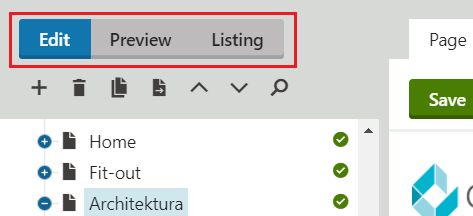
When working and browsing pages in Kentico in the "Pages" tab, you have 3 preview modes available. They are: "Edit", "Preview", and "Listing".


1. Edit

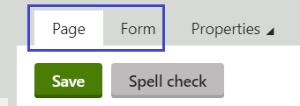
  • standard mode used for editing your pages, most often on the "Page" or "Form" tabs


2. Preview

  • this mode always displays the latest version of the page
  • it also shows pages that are not yet published

3. Listing

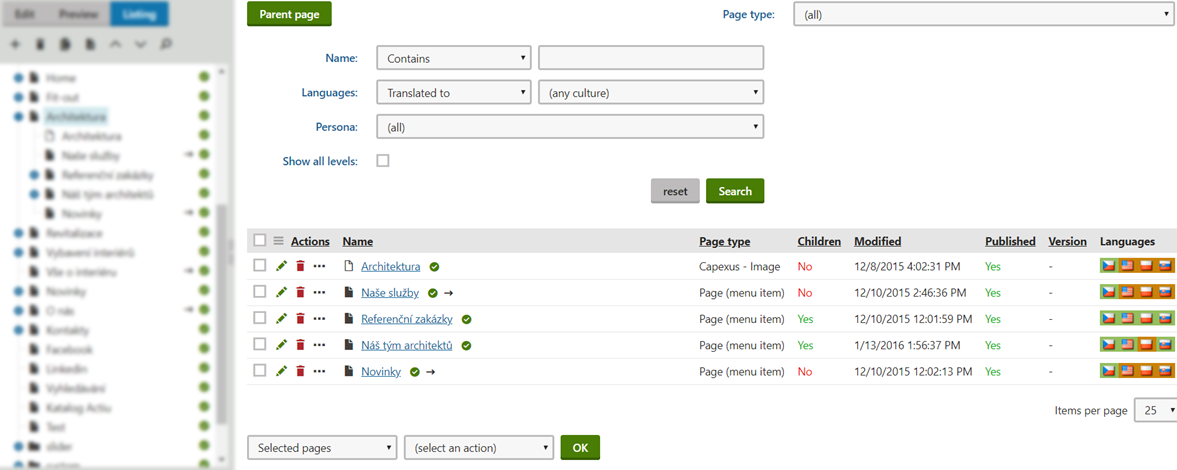
  • this mode will show us a complete list of subpages of the currently selected page see.

 
  • in this listing, we will learn information about subpages such as when a specific page was last edited, whether it is published, in which language versions the website is available, etc.
  • this mode is used for bulk operations such as deleting, copying, moving, translating, or publishing multiple pages at once
  • also read about how to work with bulk operations


Checking the page in an incognito window

Another option for checking the currently edited page in Kentico is to display the page in an incognito window of the web browser. Why?

In all likelihood, you are not logged into the Kentico administration in the incognito window, and therefore additional internal scripts that may affect the page display are not loaded in the background. Incognito windows do not permanently store so-called cookies - temporary files that hold information about the currently viewed website. These cookies are deleted after closing the browser.


So, with this display, you are viewing the page as a regular visitor to the website.

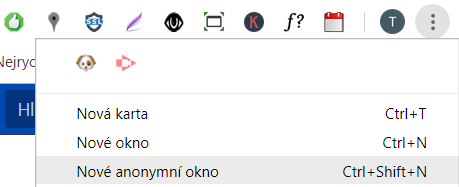
Opening an incognito window is done slightly differently in each web browser. For example, in Google Chrome, it is the combination of keys CTRL + Shift + N.

Or by clicking on the three dots icon on the right and selecting "New incognito window":


You can also check the page in any other web browser where you are not logged into Kentico. In this case, we recommend deleting cookies from the browser.