Kentico: How to delete and restore a page

How to Kentico
26. 05. 2026
Lukáš Šorf

*The guide is created for Kentico webforms. In newer versions, the settings for some features may differ. Not sure which version of Kentico you are using? Our helpdesk can assist you.


The content management system we use is designed so that you can temporarily delete a page across all variations and restore it later.
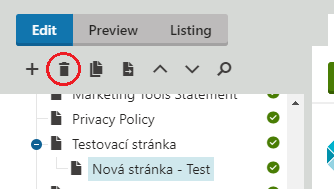
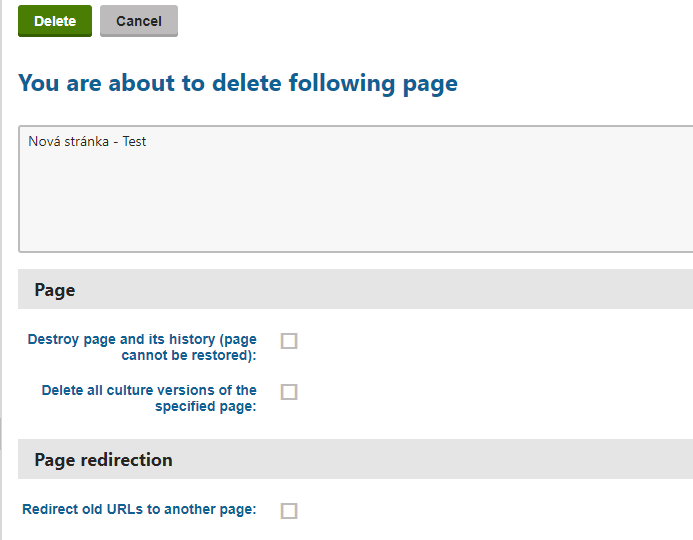
In the Kentico administration, you will remove the desired page from the page tree (Pages) by clicking on the trash can icon at the top, above the tree of all pages:


Before deleting the requested page, you have the option to refine this choice:


By selecting the checkbox "Destroy page and its history (page cannot be restored)", you ensure that the specified page will be destroyed along with its history and cannot be restored.

By selecting the checkbox "Delete all culture versions of the specified page", you ensure the deletion of all language versions of the specified page as well.

The checkbox "Redirect old URLs to another page" will offer the option to redirect the old URL of the page to any other page.


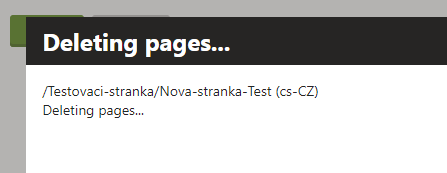
If you simply delete the page, it will move to the bin in Kentico.


How to restore a deleted page in Kentico?

If you have only deleted the page (without selecting the first checkbox to destroy the page and its history), the page will move from the Kentico tree to the Bin.


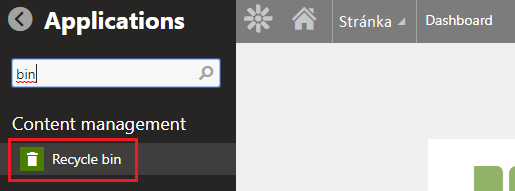
You can find the Bin in the administration by clicking on the gear icon in the top left and typing "bin / bin":


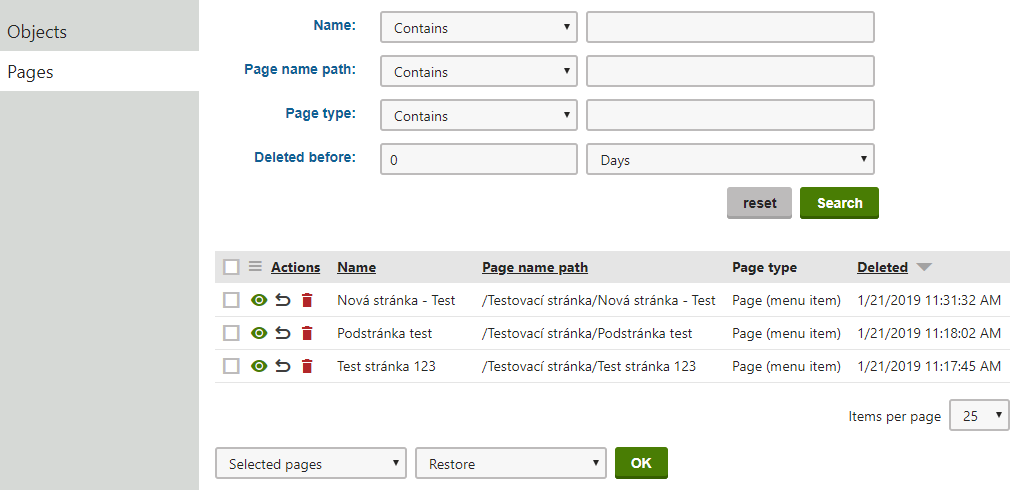
In the Basket, click on "Pages" from the menu on the left, and you will see a list of deleted pages:


In this listing, you will find deleted pages, their URL paths, and when a specific page was removed.


In the form fields above the listing, you can filter deleted pages based on what they contain in the title (filter "Name:" - "Contains" - "Content in the page title")


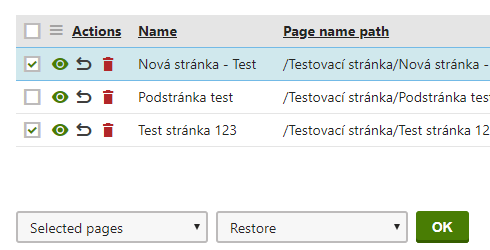
By selecting the checkbox to the left of the "Actions" column, you will mark only the specific page or pages with which you want to perform further operations.


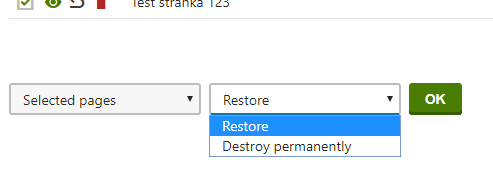
Under the list of pages in the "Selected pages" field, you choose whether you want to perform the following operation only on the selected pages or on all pages.

On the right in the "Restore" field, you select whether you want to restore the specified pages (Restore) or completely remove them from Kentico without the possibility of further recovery (Destroy permanently).


Clicking the green button "OK" will start the set operation.

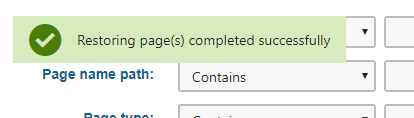
Requested pages restored:


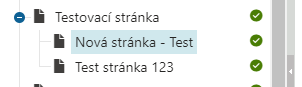
You can find the restored pages again in "Pages" in the Kentico tree at the location where you originally deleted them: