Kentico: How to set a custom URL for a page

How to Kentico
26. 05. 2026
Lukáš Šorf

*The guide is created for Kentico webforms. In newer versions, the settings for some features may differ. Not sure which version of Kentico you are using? Our helpdesk will assist you.


In the Kentico system, you have the opportunity to modify the address of a specific page as needed. You can shorten it or completely rename it.
Setting a Custom URL Path for a Page in Kentico

1. In Kentico → Pages → the page for which you want a custom URL address.


2. On the desired page, click on the Properties tab in the top right corner → select "URLs".

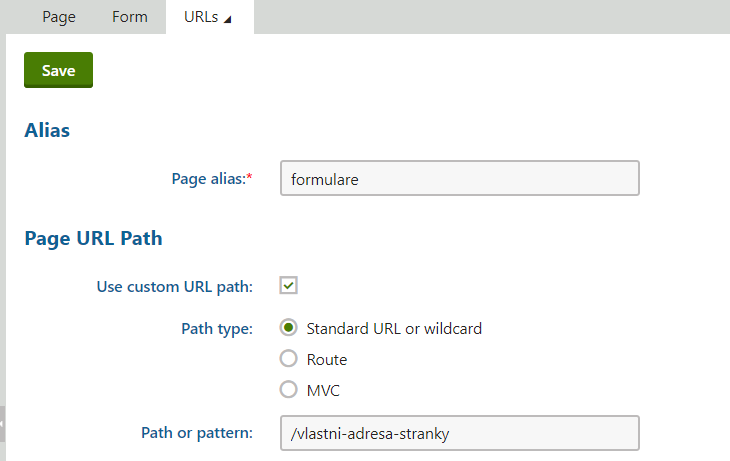
- check the box "Use custom URL path" and the box "Standard URL or wildcard"

- fill in the "Path or pattern" field with the URL path after the slash /, for example "/custom-page-address"

- never change the "Page alias" field - it is tied to internal documents, repeaters, and any language versions of the website


3. The correct setup will look as follows:


Save by clicking on "Save".

Test the new URL of your page in a web browser.


Done.


4. You can resolve the preservation of the original URL address of the page using an alias.

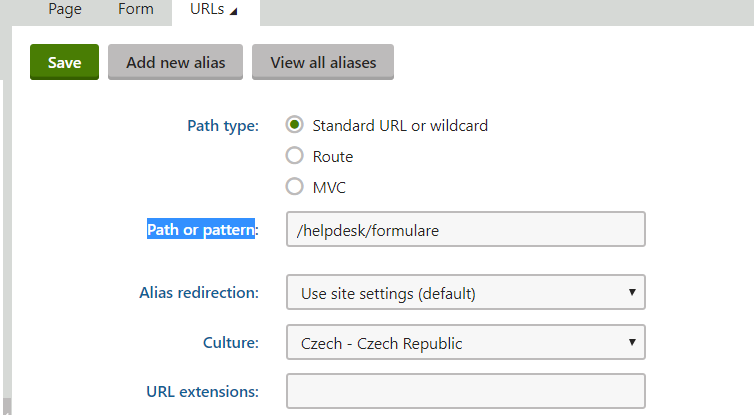
- on the same page (Properties → URLs) at the bottom in the "Page aliases" section, click on "Add new alias"

- enter the alias (URL address) of the page in the "Path or pattern" field, for example:


Save changes by clicking on "Save" and check by entering the alias URL in a web browser